How to manage Country and IP blocker?
The Country and IP Blocker feature allows you to restrict access to your store based on a visitor’s country or IP address. This is useful for preventing unwanted traffic, reducing fraud, or complying with regional business restrictions.
Accessing Country and IP Blocker
To configure this feature:
Step 1: Open Geolocation
Select Geolocation from the left menu.
Step 2: Open Country and IP blocker
Click the Country and IP blocker tab.
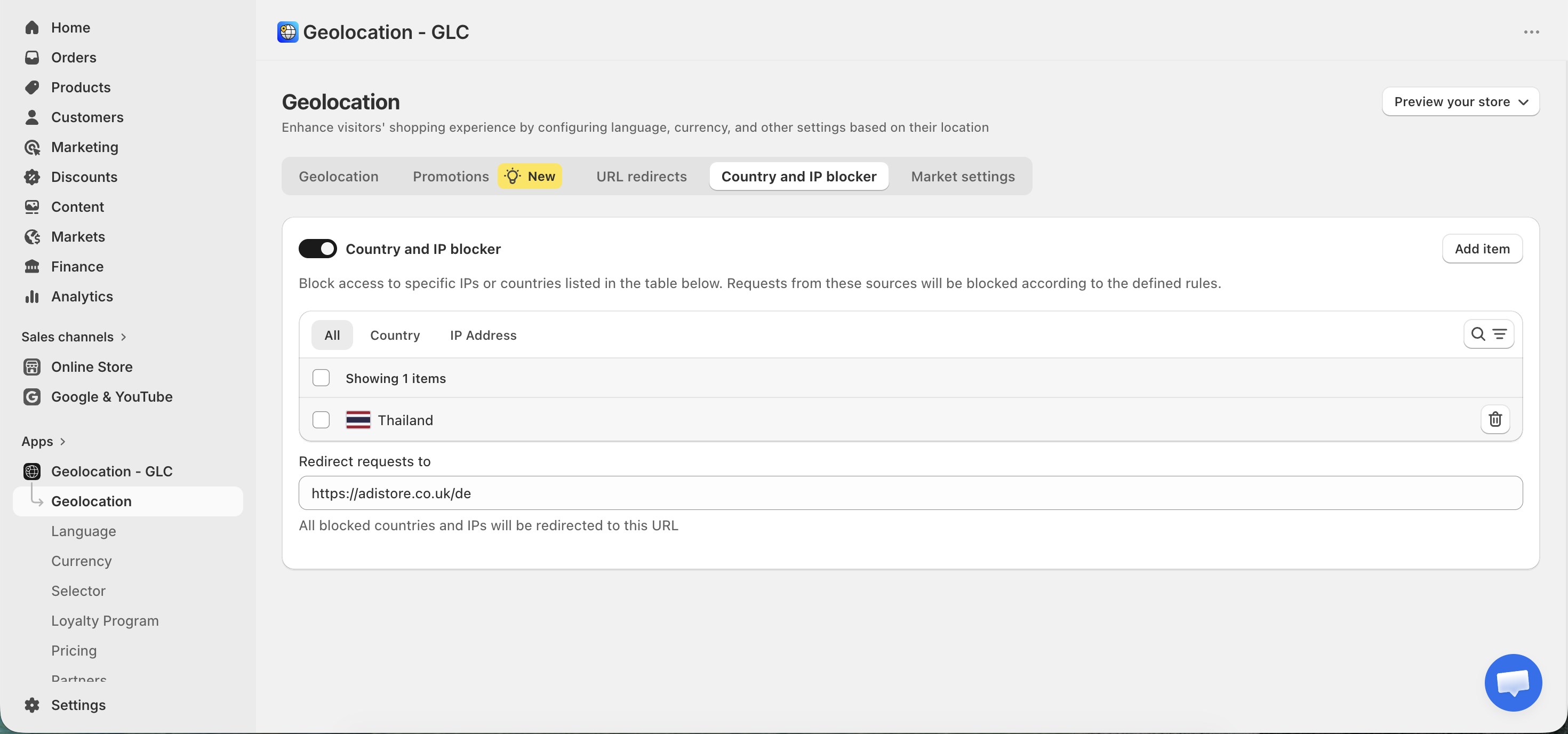
Step 3: Enable the feature
Enable the Country and IP blocker toggle.
Blocking by Country
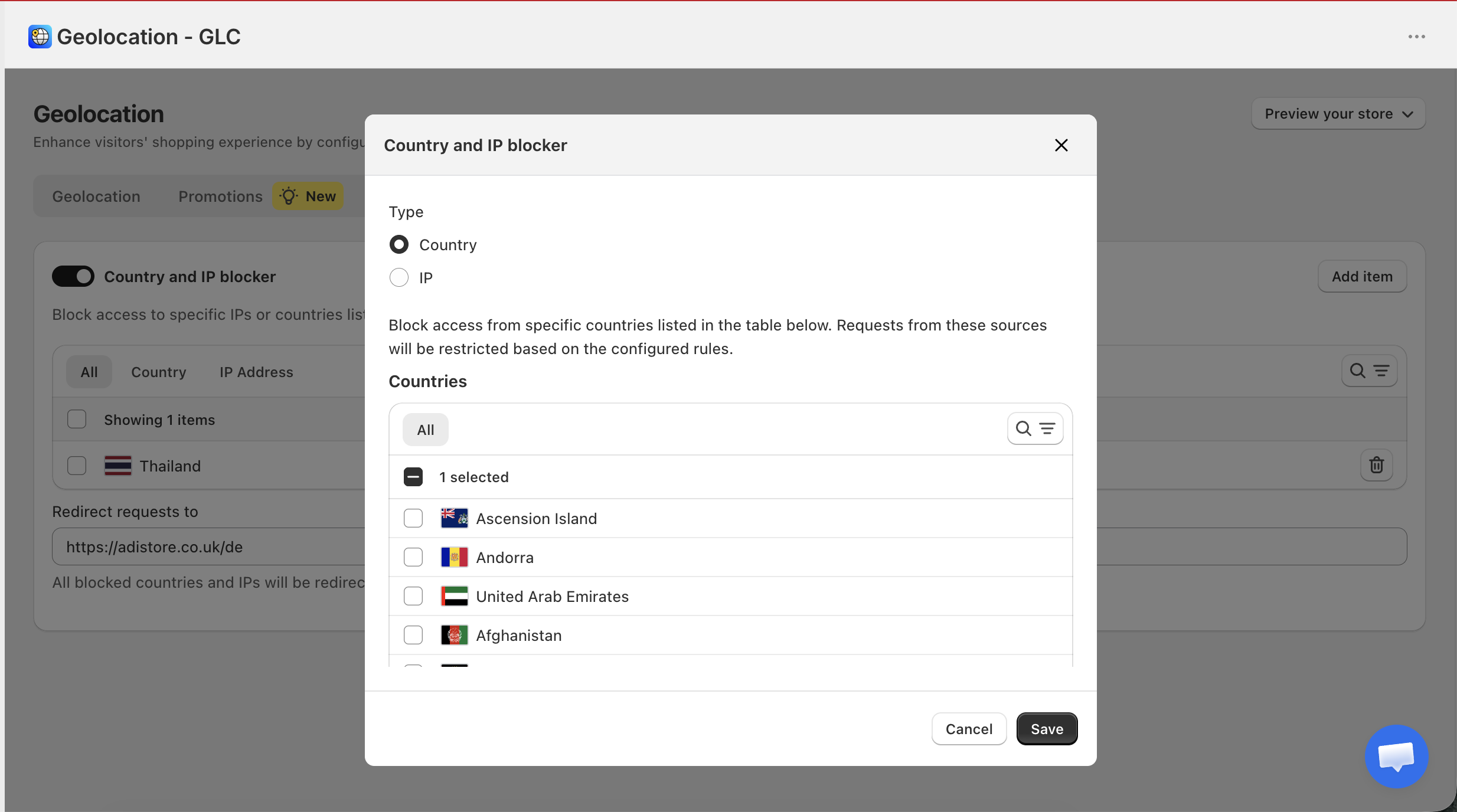
When Country is selected as the type:
- You can block access from one or multiple countries.
- A list of available countries is displayed.
- Simply select the countries you want to restrict and click Save.
This option is ideal if you do not ship to certain regions or want to prevent traffic from specific locations.
Blocking by IP Address
When IP is selected as the type:
- Enter a specific IP address (for example:
1.2.3.4). - Click Add IP to include it in the block list.
- Save your changes to apply the restriction.
IP blocking is commonly used to stop suspicious activity, repeated abuse, or internal testing access.
Conclusion
URL Redirects in Geolocation - GLC ensure visitors never hit a dead end. By automatically guiding users to relevant pages, you maintain a seamless shopping experience while protecting conversions and SEO performance.
If you need further guidance or have any questions, don't hesitate to reach out to our support team through email us at [email protected]